|
HD/SD-SDI Output
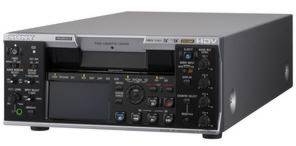
The HD/SD-SDI
output of HVR-M35E allows straight duplication to a deck with
HD/SD-SDI input.
Multi-format Playback/Recording
Capability
The
HVR-M35E supports HDV native
progressive recording modes and has a 60i/50i switchable function,
so it can playback/record:
•HDV1080i:
60i/50i/24p/30p/25p
•DVCAM/DV:60i/50i
•The
HDV720p(24/25/30p) tape playback is available for a simple
viewing.*
*No i.LINK output
for HDV720p
Standard and Mini Size Cassette Tape
Compatibility
Both standard and
mini size cassette tapes are supported. It accepts standard
cassettes shot on the HVR-S270E or other
shoulder-mount DVCAM camcorders.
2.7-inch Wide Clear Photo LCD plus Screen and Monaural
Speaker
A built-in 2.7-inch
type wide Clear Photo LCD plus™ screen and built-in monaural
speaker allow quick and convenient checking of video and
audio.
Other Functions of the HVR-M35
The HVR-M35 covers most functions
of its lower-end model, the
HVR-M25.
Down-conversion Playback
Capabilities
The
HVR-M35P can convert material from HD
down to SD, and output the SD video signal through its i.LINK,
SD-SDI, analogue component, S-video, and composite connectors. This
allows users to edit recorded material with a compatible nonlinear
editing system using current DV editing software, as well as record
SD signals to an external VTR. When down-converting these signals,
the aspect ratio displayed can be converted from 16:9 to 4:3.
Display modes can be selected from Squeeze, Letterbox, and Edge
Crop*16.
*16 Letterbox
output is not available from the i.LINK connector. For the HDV
recording with four channels audio data, the audio data in the
down-converted DV signal is selectable from either 1/2ch or
3/4ch.
Edge
Crop Adjust
When
down-converting signals in Edge Crop mode, you can use the Edge
Crop Adjust function to adjust the edge crop position. By
displaying the edge crop marker on the LCD monitor, operators can
conveniently check the edge crop position before outputting
downconverted signals.
DUPLICATE PLUS
The DUPLICATE PLUS
function makes it easy to copy video and audio from a VTR or
camcorder onto the HVR-M35P – along with the original time
code. Operators simply connect the two i.LINK devices together via
their i.LINK interfaces and press the DUPLICATE PLUS and PLAY
buttons on the front panel of the HVR-M35E. Copying will then
begin.
|